On-Page SEO Techniques to Rank Higher in 2026
April 22, 2026Confidently Master WordPress on Your Own: A Powerful Beginner’s Guide”
April 24, 2026
WordPress is built to be easy to use. Good for beginners who don’t know code. It gives ready themes, a visual editor, and tons of plugins so you can put a site together without much tech. Use free tutorials, guides, and videos and you’ll start to get how it works.The fastest way to learn is by doing. Make pages, write posts, try features. You will hit problems at first. Practice and fixing things will build your confidence. With interest, patience, and steady effort, anyone can learn WordPress on their own.
Advantages of Learning WordPress:
1. Easy to learn and use for people who don’t code.
2. Lets you build blogs, business sites, portfolios, or shops.
3. Big community for help and lots of free resources online.
4. Thousands of themes and plugins for looks and features.
5. Boosts job and freelance chances in web work.
6. Core software is free, so it’s cost-effective.
7. Structure that helps sites rank on search engines like Google.
8. Fast to get a site up and manage content.
9. Regular updates and solid security tools.
10. Skills transfer to real web projects.
Best free resources
There are plenty of free ways to learn WordPress online. Official WordPress lessons explain the platform clearly. YouTube shows each step. Sites like WPBeginner have written guides. Forums and blogs help when you run into errors. Use these resources often and you’ll learn faster.
Advantages of free resources in WordPress:
1. No cost to start building a site.
2. Lots of free themes for design.
3. Free plugins to add features.
4. Large community ready to help.
5. Tutorials and docs are easy to find.
6. Developers push regular updates and fixes.
7. Good for students and beginners on a budget.
8. Lets you learn hands on by doing.
9. You can build a working site with only free tools.
10. Save money while picking up professional skills.
Practice without paying
You don’t need to buy a domain or hosting to practice. Install Local WP on your computer and make sites offline. Test themes, plugins, and designs freely. Break things and fix them. No risk. Offline practice shows you how WordPress behaves in real time and saves money while you learn.Essential skillsLearn how to install and switch themes. Get comfortable with page builders like Elementor. Know how to install, activate, and manage plugins. Practice creating pages, posts, and adding images and media. Learn menus, categories, and tags. These skills let you build a full site with confidence.Learning curveThe basics you can pick up in a few days. Getting comfortable with everything takes a few months. Practice often. Try new features and repair small issues. Watch a tutorial while you do things. Keep at it and you’ll get confident.Can I learn WordPress in 3 daysYes, you can learn the basics in three days if you focus and practice. Day one, learn how WordPress works and install it. Poke around the dashboard and settings. Make pages and posts. Day two, work on themes and design. Change templates and the look. Try some plugins like a contact form or SEO tool. Day three, build a simple site from scratch. You won’t be an expert after three days. But you’ll have a strong foundation. Keep practicing every day and you’ll improve. Watch tutorials and read guides to speed things up.
3-Day learning plan
Day 1 – setup and basics
Install WordPress on a local server or a host so you can start building. Log in to the admin area and look around. Find Posts, Pages, Appearance, Plugins, Settings. Make a few simple pages — Home, About, Contact — so you see how pages behave. Switch the theme and watch the site change. Tweak colors and fonts in the customizer. By the end of day one you should be okay moving around the dashboard and editing page content.
Advantages of setup and basics:
– WordPress installs fast. Start building in minutes.
– The dashboard is easy to learn.
– Basic settings like site title and timezone are simple.
– You can create pages and posts right away.
– Default themes change the look with no coding.
– Menus and homepage settings are straightforward.
– You can add users and set roles from the start.
– Upload images and videos as you go.
– Basic setup is enough to launch a simple site.
– Learning these basics makes later steps easier.
Day 2 – content and design
Focus on writing and publishing posts so the site has real content. Add images, format text, use headings to break things up. Learn categories and tags to organize posts so visitors find stuff. Edit the menu to link to key pages and posts. Play with widgets, headers, and backgrounds to improve the look. Practice with the block editor until it feels natural. By the end of day two your site should have structured content and a cleaner design.
Advantages of content and design in WordPress:
– A visual editor makes writing and formatting simple.
– You can add images, videos, or a gallery.
– Categories and tags help organize posts for readers.
– Themes and the customizer let you change colors and fonts.
– Navigation menus make the site easier to use.
– Preview changes before you publish them.
– Edit header and footer to match the site identity.
– Responsive themes mean the site works on mobile.
– Reusable blocks and templates save time.
– Better content and design make the site look more finished.
Day 3 – plugins and final practice
Add features and test everything before you finish. Plugins let sites do more without coding. Add contact forms, security, or SEO and speed tools. Popular plugins include Contact Form 7, Yoast SEO, and WP Super Cache. Click through pages and menus. Test forms and images. Try the site on mobile and desktop. Fix errors and tidy up content and design. Do this and the site will be ready for visitors.
For most sites, the final step is installing plugins in a few key areas.
Advantages of plugins and final practice:
– Plugins add features without writing code.
– Make contact forms, galleries, backups, and security.
– SEO plugins help your site appear in searches.
– Performance plugins make pages load faster.
– Security plugins protect against common threats.
– Activate or deactivate plugins whenever you want.
– Building a full site for practice builds confidence.
– Testing shows which plugins actually work.
– Practice teaches you site management in real time.
– Use plugins wisely and the site looks more professional.
Security
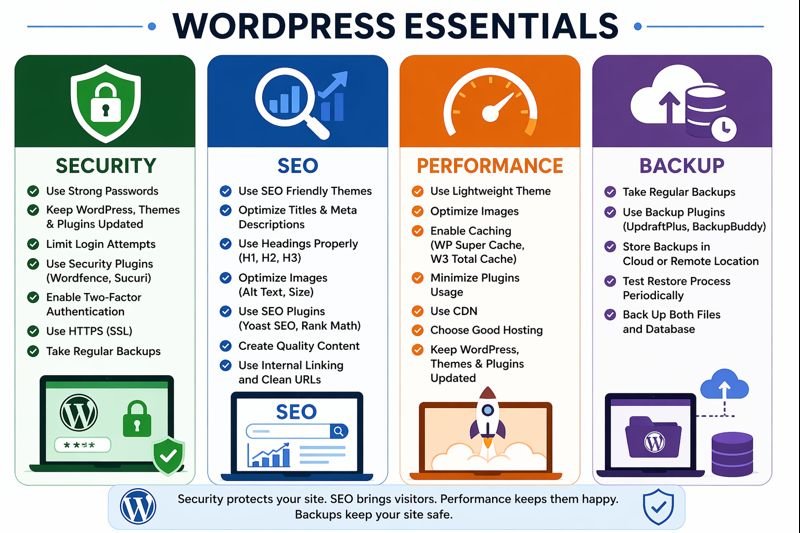
Protect against attacks with tools like Wordfence or Akismet for spam. Security means keeping hackers and malware out and stopping unauthorized access. A secure site keeps data and files safe. Use strong passwords and keep WordPress, themes, and plugins updated. Install security plugins that monitor and block attacks and scan for malware. Use HTTPS. Do regular backups and pick trusted hosting for extra protection.
Advantages of security in WordPress:
– Protects the site from hacking and malware.
– Keeps user data, passwords, and files safe.
– Lowers the risk of unauthorized admin access.
– Plugins like Wordfence add firewall and malware scans.
– Regular updates fix vulnerabilities.
– Limits login attempts to stop brute-force attacks.
– Supports HTTPS for secure data transfer.
– Builds trust with visitors and customers.
– Prevents downtime caused by attacks.
– Helps keep the site running reliably.
SEO IN WordPress:
SEO is optimizing a WordPress site so it ranks better in search engines like Google. It means improving content, structure, speed, and keywords so search engines can index the site. Use plugins like Yoast SEO or Rank Math to optimize titles, meta descriptions, and keywords without coding. WordPress supports clean URLs, mobile-friendly themes, and fast pages, all good for SEO. Proper use of categories, tags, images, and internal links makes the site easier to find.
Advantages of SEO in WordPress:
– Helps the site rank higher on search engines.
– Brings more organic traffic without paid ads.
– Makes content easier for search engines to read.
– Plugins like Yoast guide content optimization.
– Helps write better titles and meta descriptions.
– Encourages proper use of keywords and headings.
– Creates clean, readable URLs.
– Boosts visibility to the right audience.
– Improves credibility and online presence.
– Supports long-term website growth.
Performance
Performance is about how fast a site loads and responds. It matters to users and search rankings. Use a lightweight theme and optimize images. Turn on caching and remove plugins you don’t need. Plugins like WP Super Cache and W3 Total Cache store static copies to speed pages. Pick reliable hosting and keep everything updated. A well-optimized site loads fast. That cuts bounce rate and gives visitors a better experience.
Advantages of performance in WordPress:
– Makes pages load faster for visitors.
– Improves user experience overall.
– Cuts bounce rate from slow loading.
– Helps SEO ranking when the site is fast.
– Handles more visitors without slowing down.
– Saves server resources and bandwidth.
– Works smoothly on mobile and desktop.
– Keeps visitors engaged longer.
– Feels more professional to users.
– Reduces frustration with slow pages.
Backups
A backup is a copy of your whole site. Posts, pages, images, themes, plugins, and the database. Backups let you restore the site if something goes wrong. They protect against hacking, server failure, deleting things by mistake, and bad updates. Make backups in your hosting control panel or use plugins like UpdraftPlus and BackupBuddy.
Advantages of backup in WordPress:
– Prevents permanent data loss.
– Lets you restore after errors or attacks.
– Saves copies of posts, pages, images, and the database.
– Plugins like UpdraftPlus automate backups.
– Schedule backups to run without thinking about them.
– Store backups in cloud or local storage.
– Cut recovery time during emergencies.
– Protects the site during updates or changes.
– Gives peace of mind to site owners.
– Helps keep a business running smoothly.
Is WordPress easier than coding
Yes. For most beginners WordPress is easier than coding. It lets you build and manage sites without programming. Themes, drag-and-drop tools, and plugins make design and customization simple. You can build pages, add content, and change the look through settings. Coding means learning languages like HTML, CSS, and JavaScript.
Key advantages of WordPress
Easy to use
– A clear dashboard that beginners can learn.
– Create pages and posts without code.
– The block editor makes formatting simple.
– Upload images and videos with a few clicks.
– Menus and navigation use drag-and-drop.
– Settings are organized so you can find things fast.
– Themes install and preview instantly.
– Built-in tips show up while you work.
– One-click updates keep the site running.
Flexible and customizable
– Thousands of free and paid themes.
– Change colors, fonts, and layout without code.
– Plugins add forms, galleries, SEO help, and more.
– Page builders let you design with drag-and-drop.
– Widgets add content to sidebars or footers.
– Custom menus keep the site structure clear.
– Headers and footers can be edited to match your look.
– Make a blog, store, portfolio — same platform.
– Switch themes and plugins when you need to.
– If you code, you can add custom changes too.
You get control over how the site looks and works.
Cost-effective
– WordPress itself is free to download and use.
– Many themes in the directory are free.
– Lots of useful plugins don’t cost anything.
– Practice locally without buying hosting or a domain.
– Maintenance costs are lower than custom-built sites.
– Free tutorials and community help reduce learning costs.
– You can build professional sites without hiring a developer.
– Updates are free and easy to install.
– Affordable hosting options work well with WordPress.
All in all, WordPress is a budget-friendly way to build a site.